 AI Agents & Automation
I’m onboarding someone to Claude this month. She’s not a developer. She runs communications and marketing for a church — Slack, Monday, Google Drive, Adobe Suite, Instagram, the full social-and-events stack. The kind of person Claude could obviously help, who has never sat down and figured out how.
When I started planning the training session, I caught myself doing the thing everyone does. I started writing a list of cool prompts she could try. Caption writers. Hashtag generators. “Turn this rough idea into a newsletter.” Tutorial-bait. The shape every “Claude for marketers” YouTube video has.
Then I stopped and reframed the whole project. The rule I wrote at the top of the project doc:
Teach her to fish. Don’t fish for her.
— Brett Ridenour
The goal is not “Haley asks Brett, Brett asks Claude, Brett sends Haley the answer.” The goal is Haley reaching for Claude on her own to figure her own stuff out. Which means I have to start somewhere very specific: with evidence of what she actually does all day. Not what she says she does. What the files on her computer say she does.
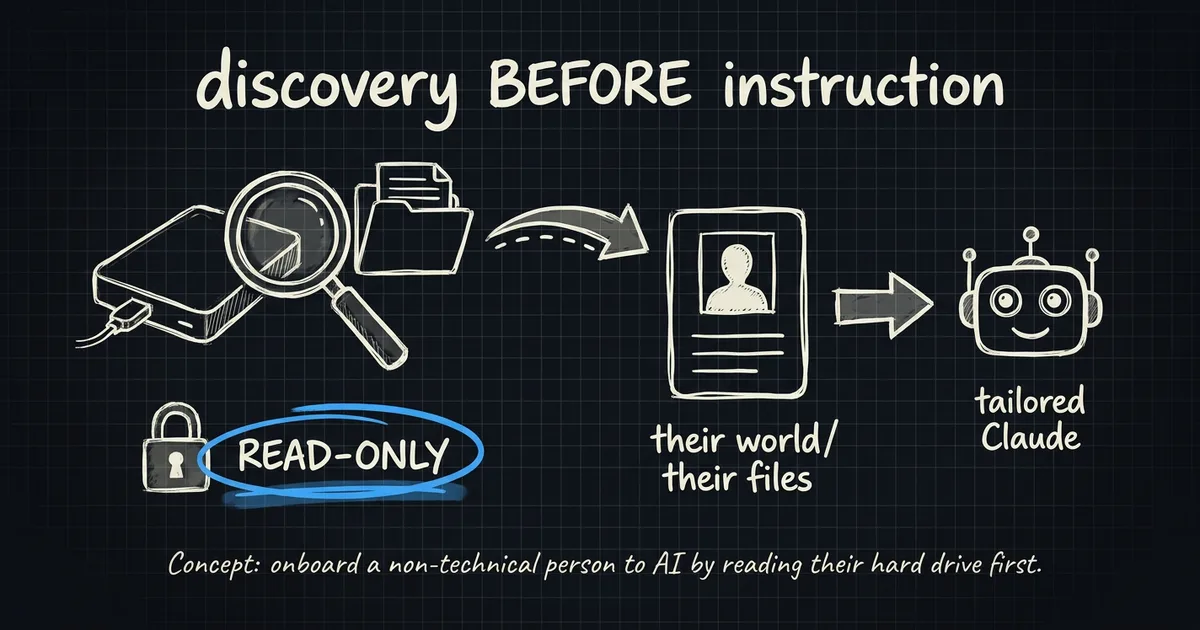
So before I write a single prompt for her to try, I’m running a read-only audit of her work MacBook.
The audit, in one sentence
Open Claude Code on her laptop. Paste a prompt that inventories her apps, browser history, recent files, and cloud folders. Save everything to a folder on her desktop. Don’t touch a single byte. Then read what comes out and design the training around the actual evidence.
The shape:
That’s it. No uploads, no edits, no installs, no sudo. The output is one folder: ~/Desktop/Haley-Workflow-Audit-2026-06-28/, with a synthesis file at the top called 00-SUMMARY.md that I read first.
The rules that make it safe to run on someone else’s machine
This is the part that mattered most. I’m running an LLM with shell access on someone else’s work laptop. Not just any laptop — a church laptop, with congregant data on it. So the prompt opens with five non-negotiable rules, and Claude reads them before doing anything:
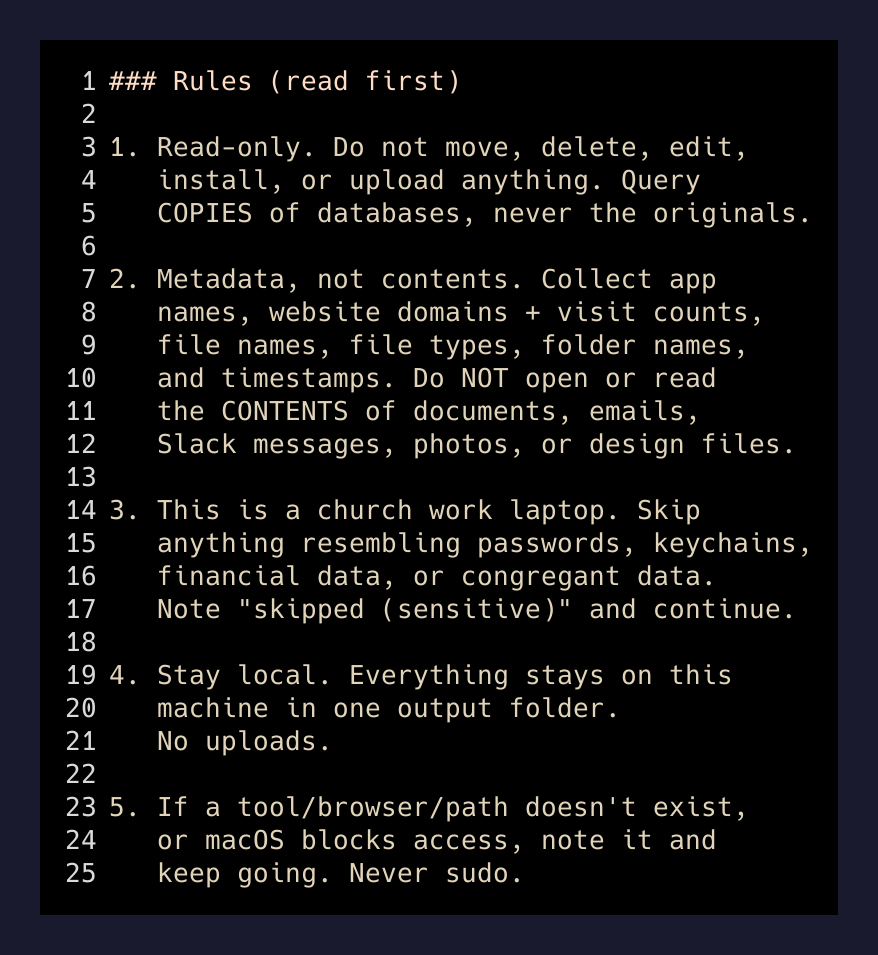
The rules in plain English:
- Read-only. No move, no delete, no install, no upload. Query copies of databases, never the live ones.
- Metadata, not contents. File names and types and timestamps are fair game. The contents of documents, emails, Slack messages, photos are off-limits.
- Skip anything sensitive. Passwords, keychains, financial data, congregant data. If something looks sensitive, note “skipped (sensitive)” and keep moving.
- Stay local. Everything lives in one folder on her desktop. Nothing gets uploaded anywhere.
- Never
sudo. If macOS blocks something — Safari history needs Full Disk Access — note it and move on.
Those five rules are why I can paste this prompt on a machine that isn’t mine, hand it to a non-technical user, and not lose sleep. The model is permission-bounded by what I told it, not by what it can technically do.
Browser history is the goldmine
The most useful step in the whole audit is the browser pass. Apps tell you what’s installed. Browser history tells you what someone actually uses.
The trick is that Chromium browsers lock their History database while the browser is open. You can’t just sqlite3 against it directly. You copy it to /tmp first, then query the copy:
cp "~/Library/Application Support/Google/Chrome/Default/History" /tmp/h.db
sqlite3 /tmp/h.db "SELECT url, title, visit_count,
  datetime(last_visit_time/1000000 - 11644473600, 'unixepoch', 'localtime') AS last_visit
  FROM urls
  ORDER BY visit_count DESC
  LIMIT 400;"
That gives you the 400 most-visited URLs in her browser. Then the prompt does the same thing across every profile (Default, Profile 1, …), every Chromium browser (Chrome, Arc, Edge, Brave), Firefox (places.sqlite), and Safari (needs Full Disk Access; skip with a note if blocked).
Then it aggregates the whole thing by domain. A ranked table of her top 150 most-visited domains, with total visit counts and the most recent visit per domain. And it buckets them: Communication (Slack, Zoom), Project/Task (Monday, Asana), Creative (Adobe, Canva, Figma), Social (Instagram, Meta Business Suite), Church platforms (Planning Center, Subsplash, Tithe.ly).
That table is the real deliverable. Three minutes of reading it tells me more about her actual workday than thirty minutes of interviewing her would.
What the synthesis file has to do
The last step of the prompt is a single instruction with a lot of weight: write 00-SUMMARY.md and make it the file I read first. Five things, ordered:
- What her day revolves around — top 5–8 tools by combined evidence (app installed and N browser visits).
- Recurring task types — designing graphics, scheduling posts, event logistics, drafting newsletters.
- 6–10 candidate use-cases for teaching her Claude — each tagged
value (high/med)andease (easy/medium). Lead with the ones that will feel like magic on first try. Buy-in is a real metric. - An inventory table — tool → evidence → how Claude could specifically help her.
- Open questions to confirm with her live — which Adobe apps she actually uses (vs. just installed), which “scheduling” tool, biggest time-sinks.
That last point is the whole point. The audit doesn’t replace talking to her. It makes the conversation worth her time. Instead of “tell me about your job” — a question she’d have to answer five times this month — it becomes “I see Canva and Planning Center in your top ten and almost no Photoshop. Is that right?” Different question. Lighter on her.
The automation rule that keeps her in the chair
The audit is half the project. The other half is a small set of automations she’ll operate — not ones I’ll run for her. The flagship one is a Sunday-photo pipeline: she shoots a batch of event photos, automation generates options (black-and-white versions, collage layouts), they get pushed to her phone, she picks the ones she likes, she posts.
The principle behind the design is the same as the principle behind the audit. Build options. Don’t take her chair.
If the automation auto-posts, she has lost a job skill. If it generates three good options and waits for her tap, she has gained a power tool. That’s the line. The model produces candidates, the human approves. Anything else is fish-for-her.
This matters more than it sounds. Most “AI for marketers” pitches I’ve seen this year are quietly pitching the wrong product. They’re pitching replacement, dressed up as productivity. What I want for her — and what I think most non-technical creatives actually want, if you ask plainly — is a tool that makes the part of the work that’s already creative feel faster, without taking the creative decision away. Pick, don’t post. Options, not output.
The takeaway
If you’re about to teach someone non-technical to use an AI tool, here’s the move I’d push back on hardest:
Don’t open with a prompt library.
Open with a read-only audit of how they actually work. Make the training fit the evidence, not the demo reel. Then design the automations so the human stays in the chair — options on the phone, picked and posted by them.
The shortcut version, if you want it as a single line: before you teach them Claude, read their hard drive.
I’ll write up what the synthesis file actually says about her workflow after the audit runs. The interesting part isn’t going to be the data. It’s going to be how wrong my guesses were going in.