
Yesterday I shipped Freebo’s production environment. Six services, one new Supabase project, a Stripe Connect live account, a Resend domain, and the part that ate ninety minutes of my afternoon: pointing freebo.ai at Railway through Cloudflare.
The Cloudflare-to-Railway custom-domain dance has half a dozen tutorials online. Every single one skips the part where you actually hit an error. So when I hit three errors in sequence, I had to figure it out the slow way. Here’s the sequence that finally worked, in case you’re staring at the same dashboard at 4pm wondering why your domain still points to a parking page.
The setup
Railway hosts the marketing site (Astro static export). Cloudflare owns the DNS for freebo.ai. The plan was simple: add a CNAME from freebo.ai to Railway’s generated *.up.railway.app host, click “verify” in Railway, watch SSL provision itself, done.
Reality:
An A, AAAA, or CNAME record with that host already exists.Cloudflare won’t let you add a CNAME at the apex if there’s anything else there — and there was, because Cloudflare automatically creates a placeholder A record on @ when you add a domain. You can’t see it in the default DNS view until you explicitly look for the apex record.
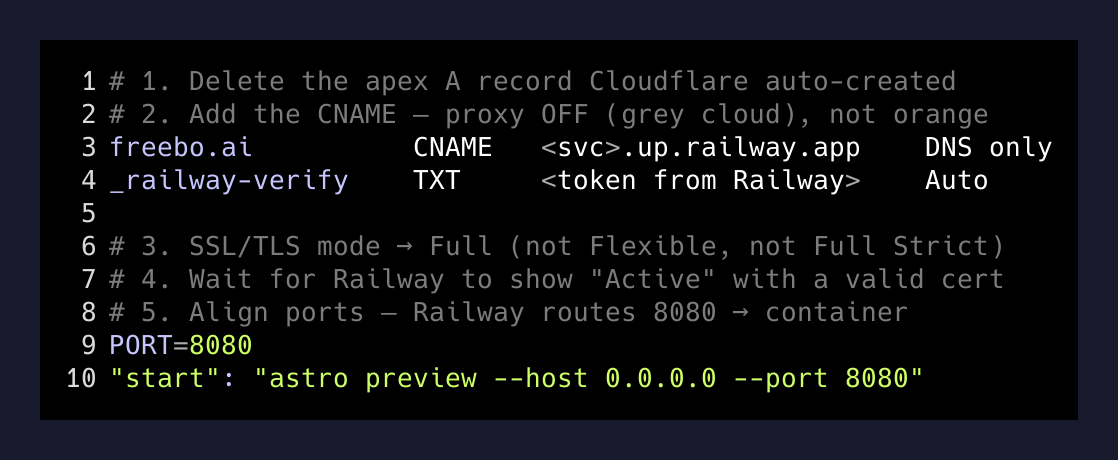
Fix one: delete the apex A record before adding the CNAME. Cloudflare lets you CNAME the apex (they call it “CNAME flattening”) which most registrars don’t. Take advantage of it.
The proxy trap
Once the CNAME existed, Railway said “verified,” but the site loaded with a Cloudflare error page. SSL handshake failed.
This is the part nobody documents clearly. Cloudflare’s orange-cloud proxy terminates SSL at Cloudflare and re-encrypts to the origin. Railway also terminates SSL at Railway. If you turn the proxy on while Railway is still provisioning its own cert, you get a handshake loop: Cloudflare presents its cert, Railway presents nothing yet, the handshake dies, and the browser sees an opaque 525.
The fix is two-step:
- Turn the Cloudflare proxy off (grey cloud) until Railway shows “Active” with a valid cert next to your domain.
- Set Cloudflare’s SSL/TLS mode to Full (not Flexible, not Full Strict — Full). Flexible re-encrypts as plaintext to origin, which Railway rejects. Full Strict requires a publicly-trusted cert at the origin, which Railway has but you can race the provisioning. Full is the safe middle.
Once Railway provisions the cert (usually 60–90 seconds after the CNAME goes live), you can flip the proxy back to orange if you want CDN/WAF in front. I left it grey for the marketing site — Railway’s edge is fast enough and I didn’t want a second SSL termination layer to debug later.
The port-8080 magic
The third gotcha was sneakier. The Astro container exposes port 4321 by default. Railway’s reverse proxy expects 8080 unless you tell it otherwise. The site built fine, the container ran fine, but every request returned “Application failed to respond.”
I’d already set PORT=8080 as a Railway environment variable. What I’d missed: Astro’s adapter reads process.env.PORT at runtime, but the start command in the service config was hardcoded to --port 4321. Railway was routing 8080 → container, container was listening on 4321, nobody picked up the phone.
The fix is one of these two, depending on your stack:
# Option 1: let the runtime read PORT
"start": "astro preview --host 0.0.0.0 --port ${PORT:-4321}"

# Option 2: just align everything on 8080 and stop fighting it
"start": "astro preview --host 0.0.0.0 --port 8080"
I went with option 2. Every Railway service in the production environment now uses 8080. Less moving parts, less to remember next time.
The TXT record nobody mentions
Railway also asks you to add a TXT verification record alongside the CNAME. Most tutorials skip this because Railway used to auto-detect domains via HTTP challenge. They’ve since moved to DNS-01 for some setups, which means you need a TXT record at _railway-verify.<your-domain> for SSL to provision.
If your domain is “verified” in Railway but the cert never lands, check whether the TXT is actually there. Cloudflare’s UI hides records that start with underscores under “Show advanced” or similar — easy to miss.
The whole sequence, written down
Because I’ll forget this in three months and so will you:
1. Cloudflare → DNS → delete the apex A record
2. Add CNAME: freebo.ai → <service>.up.railway.app, proxy OFF
3. Add TXT: _railway-verify.freebo.ai → <token from Railway>
4. Cloudflare → SSL/TLS → set mode to "Full"
5. Railway → service → custom domain → wait for "Active"
6. (Optional) Cloudflare → flip proxy back to ON
7. Set PORT=8080 on the service, align start command
Seven steps. Most of them are the kind of thing that’s obvious in retrospect and impossible to find when you’re debugging at 4pm on a Tuesday.
What I keep learning about deploys
Every production deploy I do, the part that takes the longest is never the code. It’s the seam between two services that each documented their half perfectly and nobody documented the join. Cloudflare’s docs are great. Railway’s docs are great. The hand-off — what to set on which side, in what order, with what gotchas — lives in nobody’s docs.
The right move is to write the join down once, somewhere you can find it. That’s what this post is. Future me will Google “Railway Cloudflare CNAME 525” and land on his own writeup. That’s the whole point of having a blog.
freebo.ai resolves now. SSL is green. The marketing site is up. Stripe is in verification, Sentry is catching errors, Resend is sending mail. The boring infrastructure layer is finally boring again.
Time to go ship the actual product.