
I pushed Freebo iOS v7 to TestFlight this morning. New icon, among other things. The build succeeded, App Store Connect processed it, my phone pulled the update, and the home screen stared back at me with the old icon still on it.
The build number was right. The version string was right. If you long-pressed the icon and tapped the little info card, Settings even confirmed the new build was installed. The picture was wrong.
I spent about forty minutes on this before I remembered what it was.
It is not a bug. It is a cache.
iOS doesn’t render your app icon live from the bundle every time it draws the home screen. It couldn’t — that would be absurd, hundreds of PNG decodes per launch. SpringBoard (the thing that draws the home screen and dock) keeps a system-level icon cache. When your app’s bundle identifier shows up with a new icon, that cache is supposed to invalidate.
For App Store installs, this works almost always. For a fresh install, it works. For a developer build you push over Xcode and launch directly on the device, it works.
For TestFlight updates to an app that is already on your phone, it works most of the time. Occasionally, for reasons that Apple has never cleanly documented, it just… does not. SpringBoard reuses the old icon from its cache. The new one is sitting in /var/containers/Bundle/Application/<UUID>/MyApp.app/AppIcon*.png on your device. SpringBoard is just not asking.
I know this because the first time this happened to me, maybe a year and a half ago, I did everything a reasonable person does. I checked the asset catalog. I checked AppIcon in Assets.xcassets. I checked the Info.plist. I rebuilt. I incremented the build number again. I uninstalled, reinstalled from TestFlight, confirmed the icon was still wrong, and briefly questioned my eyesight.
The thing that finally fixed it was a device restart.
The fix
1. Hold the side button + volume down until the power slider shows.
2. Slide to power off.
3. Wait ten seconds.
4. Power the phone back on.
5. Unlock. Look at your home screen. New icon.
That’s it. No settings menu. No TestFlight dance. No reinstall. A full restart is what forces SpringBoard to rebuild its icon cache from the current app bundles.
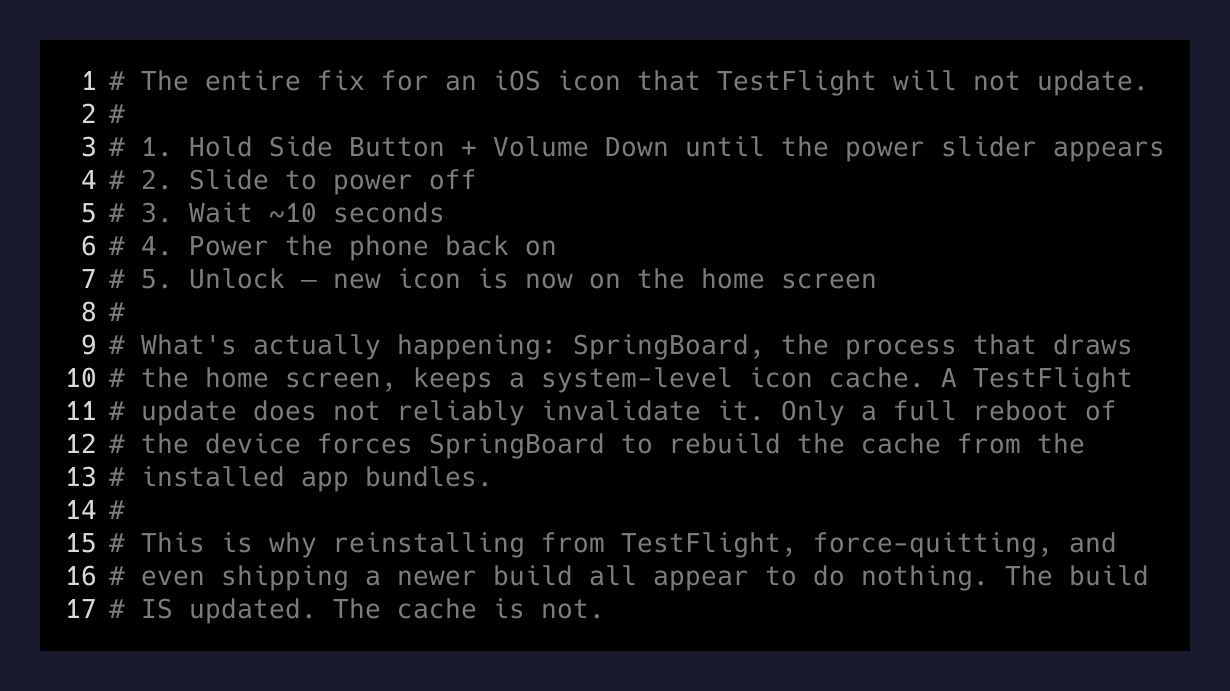
If iOS seems to be lying about your app icon, the lie is in the SpringBoard cache, and a restart is the only thing that reliably purges it.
— A fact that will save you forty minutes someday
Things that do not work
In the order I tried them, before I remembered:
- Uninstalling and reinstalling from TestFlight. The icon cache survives the uninstall if TestFlight re-adds the app under the same bundle id quickly. (This is the part that drives you insane. The whole point of uninstall-reinstall is to get a clean slate. The icon cache does not respect it.)
- Force-quitting TestFlight itself. TestFlight has nothing to do with it. SpringBoard draws the home screen.
- Toggling airplane mode. Does nothing for a local cache.
- Rebuilding the asset catalog in Xcode and pushing v8. Still showed v7’s cached icon on the home screen, with the correct new build number in the app’s info card. This is the one that will truly make you doubt your sanity.
- Logging out and back into TestFlight. No effect.
What does work, besides restart:
- A full iOS update will do it, because the system restarts as part of the update.
- Letting the phone’s battery go to zero and then charging it from dead will do it, because that forces a reboot.
- Erase All Content And Settings will obviously do it, but if you are doing that for an icon, we need to talk.
The restart is the only intentional, five-minute fix.
Why this is worth writing down
This is the fourth or fifth time I’ve hit this. Each time, I burn thirty to sixty minutes retracing the asset catalog before remembering it’s SpringBoard, not me. The thing that would have saved me that time is a one-line note somewhere I’d actually read: “If a TestFlight icon looks stale, restart the phone before touching anything else.”
So that note now lives here. The next person who ships an iOS build to TestFlight and sees the wrong icon staring back can waste thirty seconds on this post instead of forty minutes on Xcode.
A broader lesson that applies past iOS: when a system has a cache you did not know existed, the symptom will look exactly like a code bug. The thing you shipped is fine. The thing drawing what you shipped is holding onto a snapshot. The cheapest debugging move is to figure out what layer could be cached and reset that layer first — before you start rebuilding the thing you shipped on the suspicion that it is broken.
For home screens, that layer is SpringBoard. For browsers it is the service worker. For CDNs it is the edge node. For your terminal it is the shell completion cache that still thinks a flag exists that you removed last week.
The cache is almost never on the side you’re looking at. Press Hold side+Vol down and see.